
Local tasks
Overview
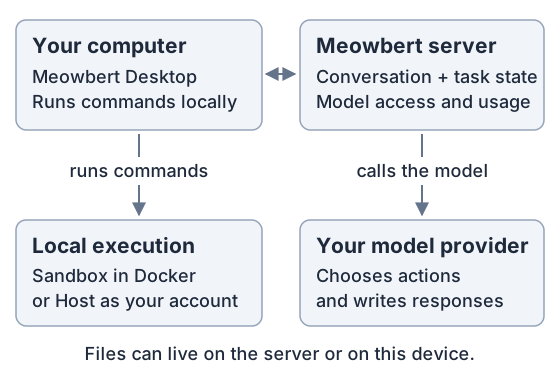
A local task is a normal Meowbert task whose commands run on your computer. The server still keeps the conversation and task state, calls your chosen AI model, and accounts for usage.
Think of it as choosing where the agent does its hands-on work. The desktop app can run commands on your computer; the server still coordinates the task.
Opening the desktop app does not switch all your tasks to local execution. In an existing server workspace, tasks still default to Cloud, which means execution on the server. You choose Local · your computer's name when creating a local task.
Two choices that are easy to mix up
Where commands run and where workspace files live are separate choices.
| Choice | Options | What changes |
|---|---|---|
| Execution location | Cloud or Local | The computer that executes the task's commands |
| Workspace file location | On server or On this device | Where that workspace stores its files |
A task can run on your laptop while its workspace stays on the server. That works only if your laptop can access the same workspace storage. Local execution does not automatically download or synchronize a server workspace.
Choose your setup
| Your goal | What you need | Guide |
|---|---|---|
| Run a task locally in an existing server workspace | Access to the server's storage from this computer: a local folder for a same-machine server, or a mounted SMB/NFS share for a remote server | Use a server workspace |
| Keep a new workspace's files on this computer | A folder you choose; no shared server storage | Create a device workspace |
Creating a workspace On this device creates a separate workspace. It does not move or convert an existing one.
Choose how local commands run
Once you choose Local, select Sandbox or Host beside it:
| Mode | How it runs | Requirements |
|---|---|---|
| Sandbox | Commands run inside a Docker container on your computer | Docker Desktop with Linux containers and the separate Meowbert sandbox download |
| Host | Commands run directly as your user account | Enable Allow host mode and accept its permission prompt; Docker is not required |
Sandbox is the default. Host mode can run any command as you and read or change any of your files. It uses host-supported bundled skills and does not install missing runtime tools. Choose Host for tasks that need your computer's own programs, or when you do not use Docker.
Both modes still need access to the workspace files. Choosing Host does not remove the shared-storage requirement for a server workspace. See Host mode and host tools for permissions and optional access to your screen and browser.
Requirements
- Supported computer: Apple Silicon macOS or Windows x64/arm64. Intel Macs can use the desktop app to connect to the server, but cannot execute local tasks.
- Server enabled: your operator must enable local execution before the desktop can use it. The desktop checkbox alone cannot do this. Operators can use the JSON in Self-Hosting → Local execution.
- Desktop running: keep the app open and your computer awake and connected to the server. The browser version has no Local selector.
Sandbox downloads
The sandbox is a separate download from the desktop app. On first use, the app asks before downloading it and shows the approximate size when available. It uses the sandbox release selected by your server.
Sandbox downloads in Desktop Preferences → Local execution controls permission for downloads and updates. The first-use prompt also offers Host mode as an alternative; Host requires separate consent. Cancelling the prompt does not start a task automatically.
If the download reports no matching manifest for linux/arm64, the server-selected image does not contain an Apple Silicon build. The server operator must update to a published image with that platform and restart the worker. Updating the desktop app alone does not change the pinned server image. Host mode can still run without the sandbox image.
Check for updates
Open Desktop Preferences → Local execution and click the refresh icon labelled Check for sandbox updates. The app checks the server-selected image and downloads it if needed and permitted. Checking does not restart local execution or stop running tasks. Tasks already running keep their current sandbox; new tasks use the updated image once it is ready.
The same panel shows the installed image, Last checked, and Last updated. Not recorded means the app has no saved timestamp, including images installed before tracking was added.
Sandbox updates also arrive automatically when your server selects a new image, or when the desktop reconnects. The app does not repeatedly download, inspect Docker, or probe your storage while idle. It keeps a lightweight connection heartbeat while local execution is enabled so your server knows the computer is reachable. Disable local execution or quit the app to stop that connection. On macOS, closing the last window leaves the app running.
What stays on the server
Local execution changes the machine doing the work, not the model connection. Conversations, task settings and usage are still stored on the server, and tasks use the server's model connection and budget. File content the agent reads goes to the model through the server, including for device workspaces. This is not offline AI.
Quitting the desktop app stops local commands and containers. Local tasks do not silently switch to Cloud when your computer is unavailable. Schedules and recurring tasks keep their local device target and wait for that device.
Use standard tasks. Subagents, Agent Swarm, Project Master and Long Horizon workflows are unavailable locally. Host mode cannot run read-only threads.