
Use a server workspace locally
Overview
Keep your existing workspace and Project. The only execution change is that your computer runs the task's commands instead of the server.
For this to work, both computers must be able to access the same workspace files. Meowbert does not download a copy of the workspace for you.
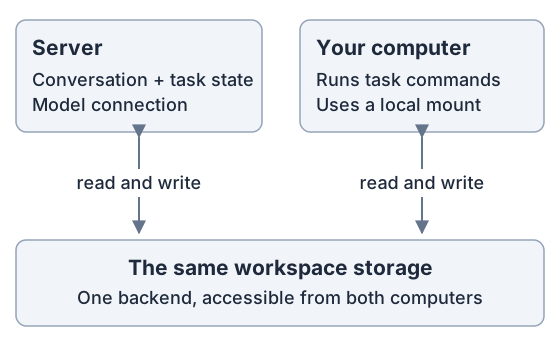
If the server runs on your computer, the files are already local. If the server is remote, its operator must share the storage over SMB or NFS and you must mount that share. Without this access, a remote server workspace cannot run locally just by changing the task selector.
What you need from your server operator
- Local execution enabled on the server.
- The storage backend ID for this existing workspace.
- Access to the backend root folder, containing
.meowbert-storage.json. This is not an individual workspace, Project or task subfolder.
The operator's Local execution setup explains the JSON and storage paths. You can keep using the same server profile and account in the desktop app.
Set up your computer
- Open or mount the storage. For a server on the same computer, use its actual host folder. For a remote server, mount the SMB/NFS share provided by the operator.
- Open account menu → Desktop Preferences → Local Execution.
- Turn on Enable on this server. This enables this computer for the selected server; it does not change the server's configuration.
- Enter the supplied Storage backend ID. Under Storage root → Choose Folder, select the backend root on your computer. An empty folder or a copied marker is not a replacement for the shared files.
- Choose the local mode. For Sandbox, keep Docker Desktop running with Linux containers and allow the sandbox download. For Host, turn on Allow host mode and accept the permission prompt when saving. You can set Default mode to Host for new local tasks.
- Set Concurrent local tasks to how many tasks this computer should handle at once, then click Save.
For example:
| Desktop field | Example value |
|---|---|
| Storage backend ID | shared-main |
| Storage root on a Mac | /Volumes/Meowbert |
| Storage root on Windows | The mounted share or drive for that same root |
The server may use a different path for those same files. Your local root must have read/write access; Sandbox mode also needs Docker Desktop to share it into its Linux VM. Meowbert checks the storage identity and access before allowing local work.
Create the task
- Return to your existing Project → New Task.
- Change Cloud to Local · your computer's name.
- Choose Sandbox or Host beside it, then submit your prompt normally.
Your computer appears as a choice after Meowbert has access to the matching workspace storage. Choosing Local does not create a new workspace or change where the existing files are stored. The desktop setting supplies the default mode; the composer chooses the mode for this task.
Files while the task runs
The task reads and edits the shared storage. Keep the share mounted and Meowbert Desktop open while work runs.
If an uploaded input has not reached the mount yet, the task waits for storage and retries. Outputs show Syncing until the server confirms they are available; an output that does not arrive within 30 minutes is marked Missing. A temporarily unavailable share leaves local work waiting rather than moving it to the cloud.
Independent mounts of a remote service, such as Google Drive for desktop alongside the server's rclone mount, are unsupported because their caches can disagree. Use the server-provided share. Live Google Drive folders are a separate attachment feature, not a replacement for sharing the workspace backend.