
Projects and tasks
Overview
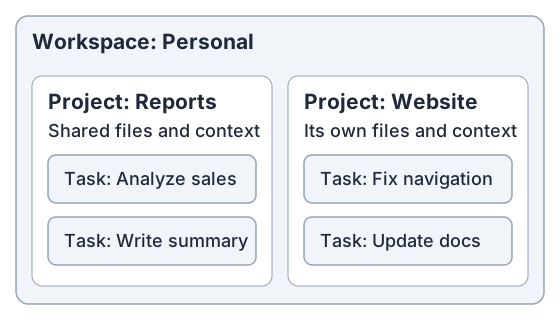
Meowbert organizes your work into three levels: a workspace contains Projects, and each Project contains tasks. Choose the Project that holds the files and context for your work, then start a task for the outcome you want.
For example, your Personal workspace might have a Reports Project for analysis and a Website Project for code changes:
| Level | What it groups | Example |
|---|---|---|
| Workspace | People, access, connected services, shared settings and memory | Personal, or your team's workspace |
| Project | Related files, Project Context and task history | Reports or Website |
| Task | A conversation and the work toward a particular outcome | Analyze sales, or fix website navigation |
If you are new to Meowbert, start with What is Meowbert?
Workspace: access and shared settings
Use a workspace for work that shares members, connectors and settings. You can belong to several and switch between them from the workspace dropdown.
Workspace memory, when available and enabled, persists useful notes across its Projects. Usage and concurrency limits also apply at workspace level. A workspace created On this device is single-user; its files and task execution belong to that computer.
Project: related files and context
Use separate Projects for distinct bodies of work. A Project holds the files and context its tasks need, the tasks that worked on them, and settings such as its personality and defaults.
A Project is not a permanently running container. Meowbert starts task sandboxes when needed, so keeping an idle Project does not mean leaving a container running. Most workspaces store Project files on the server; device workspaces store them on the owning computer.
Use Project Context for material tasks should share. Open Project Overview to browse task history. Agent shell sessions shows background commands started by a task where that feature is available.
Task: a conversation you can continue
Start a task for a specific outcome. The agent calls a model, uses tools, reads their results and continues until it finishes, needs your input or is stopped.
A task is the conversation. A run is one period of execution within it. Following up in the same task starts more work with that conversation's context, rather than creating an unrelated task.
You can inspect the messages and tool results, attach more files, correct an instruction, or branch to try a different approach. Tasks in the same Project share its context and accessible Project files, but keep separate conversations.
Where the task runs
A server-hosted workspace defaults to Cloud, meaning the task executes on your Meowbert server. The desktop app also offers Local execution on your computer after setup. This choice does not move the workspace files.
A workspace created On this device keeps its files on that computer and always targets it. See the Local tasks overview before choosing between these arrangements.
Start your first task
- Choose your workspace in the sidebar.
- Open the default Project, or create a Project for a separate body of work.
- Choose New Task and describe the output you want. Attach any source files it needs.
- Read the progress and tool results while the agent works.
- Follow up in the same conversation with corrections or the next step.
Next, see Task Composer for the task options, Files Browser for outputs, or Task Follow-up for continuing work.